
In addition to the basic data set on creation, each staff member has a separate "Settings" page with more granular permissions.
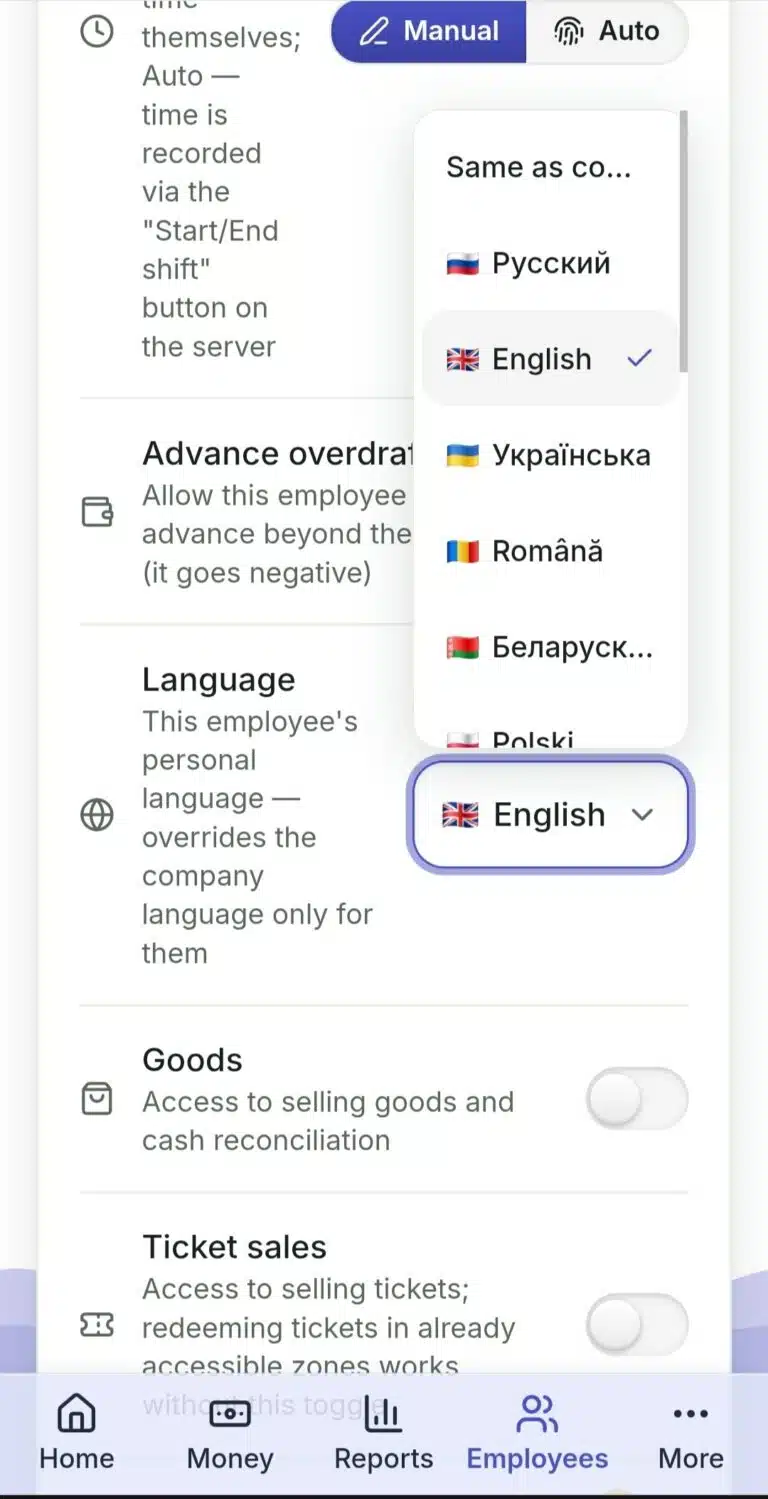
- Open the staff member's profile → "Settings".
- "PIN" — the sign-in code on a point's device; changed with the "Reset PIN" button.
- "Zone Access" — "All Zones" or a choice of specific zones by point.
- "Rate" and "Time Tracking" ("Manual" — the staff member opens and closes their own shift, or "Automatic" — the shift is determined by the actual PIN sign-in on the device).
- "Allow Negative Balance" — lets a staff member's work-time balance go negative (for example, taking an advance larger than what they have already earned).
- "Skip Shift-Start Window" (Automatic mode only) — the staff member can open a shift outside the usual allowed time without a warning about an early/late start.
- "Language" — this specific staff member's personal interface language, separate from the Owner cabinet's language; the default is "Follow Company Language".
- "Goods" and the nested "Stock Count" toggle — access to the Goods section and, separately, the right to perform a stock count (visible only if Goods access is already enabled).
- "Tickets" — access to selling tickets; redemption of already-sold tickets in accessible zones works for the staff member even without this toggle.
- "Color Tag" — the color a staff member is marked with as a chip on zone and task screens.
- At the bottom of the page — deactivation/activation and deletion of the staff member.
What to Do If… #
…you deactivated a staff member with an open shift? The system will warn you about this in advance — deactivation by itself does not close the shift.
…you do not see the "Goods" or "Tickets" toggles? The corresponding module is disabled for the whole company — enable it in Settings → System.
…a new PIN will not save? A PIN must be unique within the company — if it is already taken by another staff member, the system will not let you save it.
 Русский
  English
  Українська
  Italiano
  Română