
A published instruction can be sent as a link or shown as a QR code — it can be read and signed without signing in to the app, even if it's your own staff member signing.
- In the list of instructions, on the one you need — menu → "Link and QR".
- Send the link to the employee in a messenger, or show the QR code to scan with a phone camera.
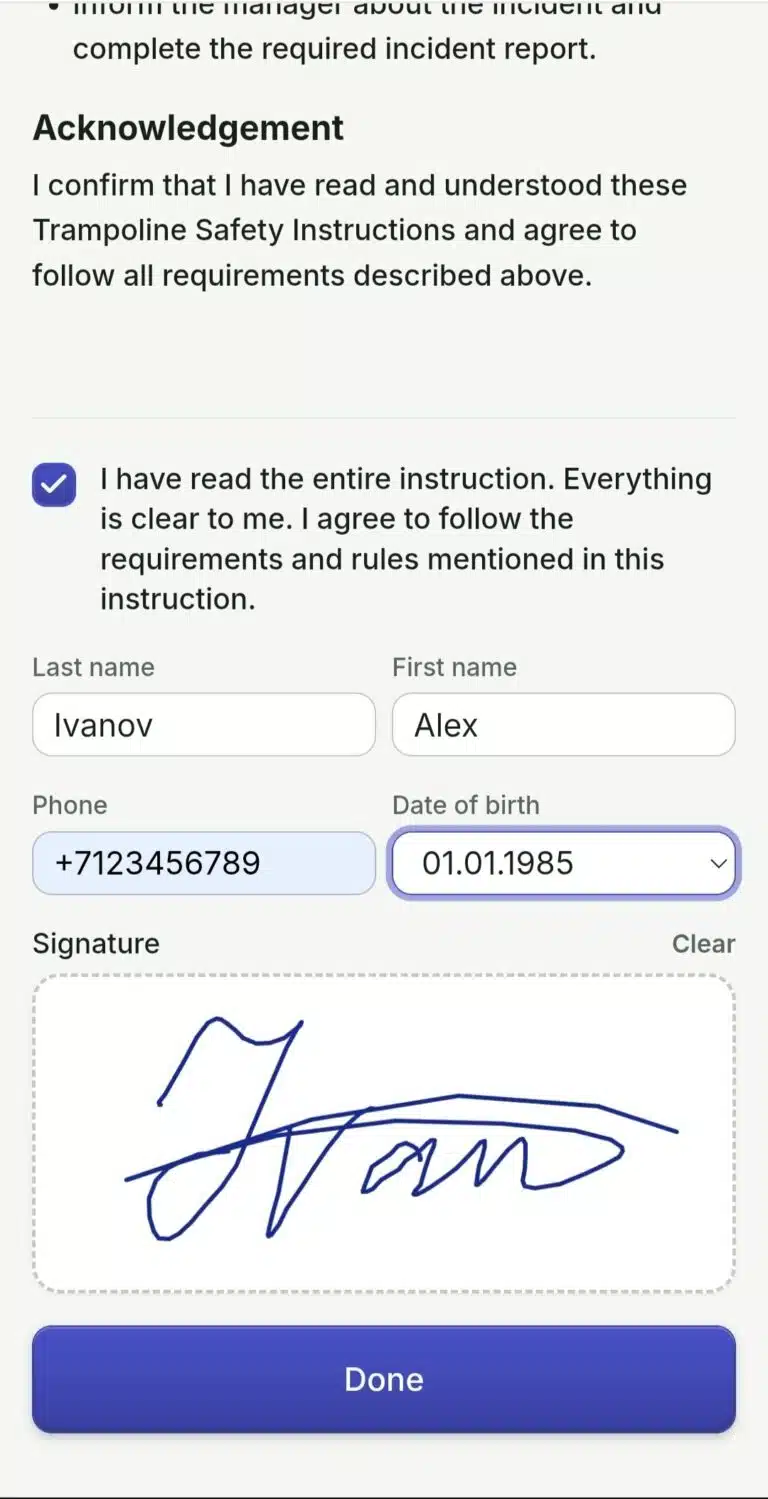
- The staff member reads the text, signs with a finger on the screen, enters their last name, first name, phone, and date of birth, and clicks "Done".
- After submitting — a "Thanks, your acknowledgment has been recorded" screen appears, the page can be closed.
What to Do If… #
…the "Done" button is inactive? If "Honesty Check" is turned on for the instruction, confirming only works after the page has been read to the end — the app will prompt "Read to the end" until it's scrolled almost to the bottom.
…an instruction was updated and someone needs to sign it again? In the acknowledgment log, select the entries you need → "Request Re-Acknowledgment" — they'll get a mark that a new signature is needed.
…a staff member has left and their record needs to be removed? In the log — deletion with confirmation. The PDF and the signature itself are deleted, but the fact of deletion remains in the change log.
 Русский
  English
  Українська
  Italiano
  Română